As a supplier on Tradeshift, you may need to include a QR code on your invoice to comply with India's e-invoicing requirements. Once you have cleared your invoice externally (e.g., through the GST Portal), follow the steps below to attach the QR code to your Tradeshift invoice.
Upload a QR Code via CSV or PDF File
1. Login to your Tradeshift account.
2. Navigate to your document and open it for editing.
3. Fill in all mandatory invoice fields (supplier/buyer details, line items, tax, etc.).
4. Scroll to the QR Code attachment section at the bottom of the invoice creation page.
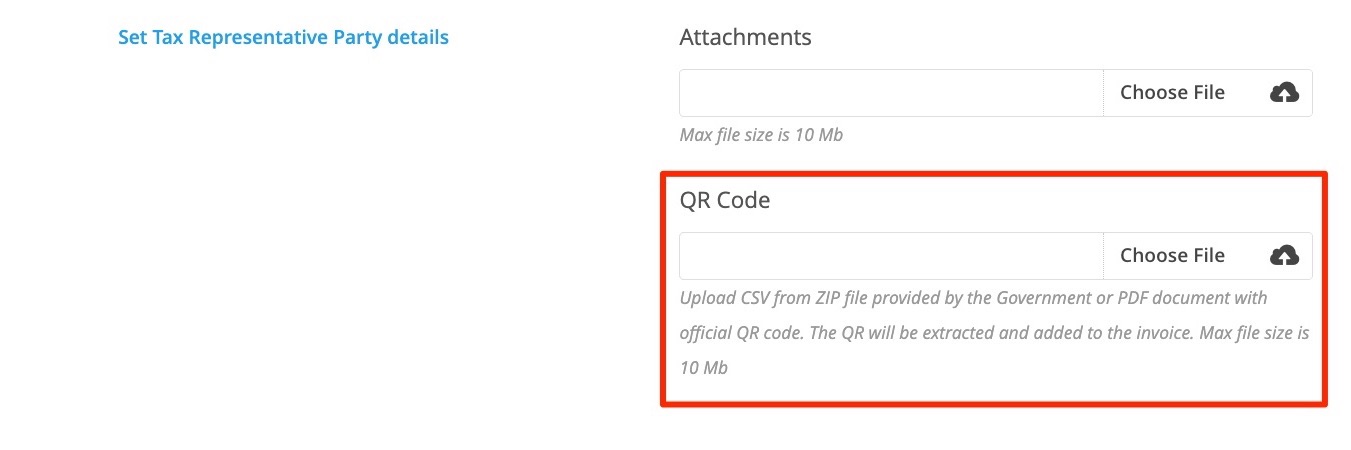
5. Upload a CSV or PDF file containing your signed QR code data, and the system will automatically extract the QR code and attach it to your invoice.
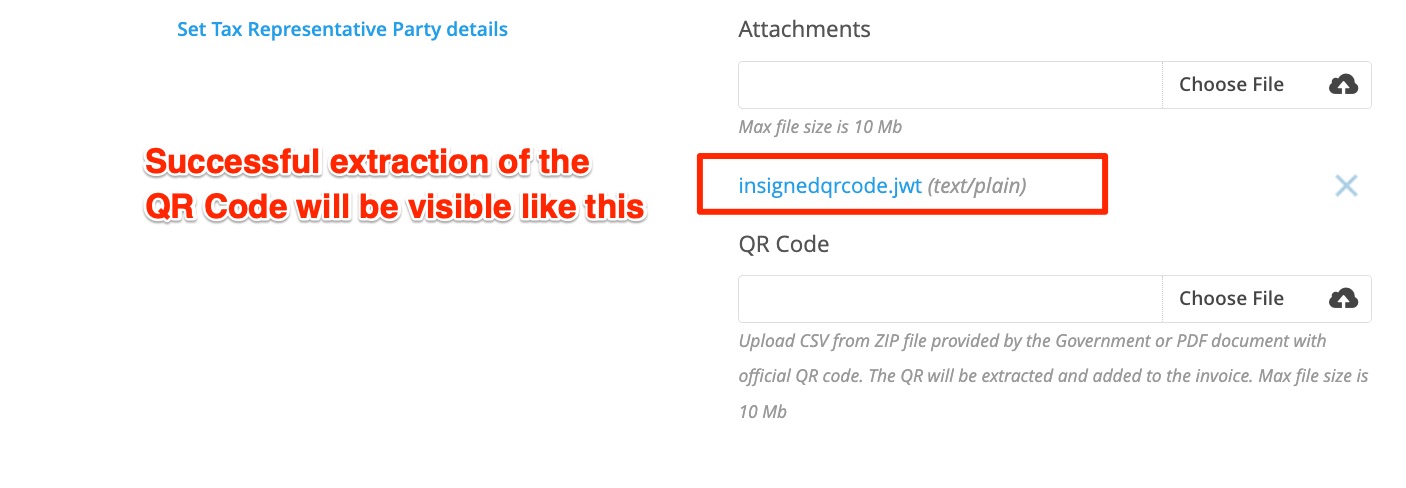
6. Include any other supporting documents in the normal attachments
7. Review your invoice and click Send.
8. After sending, open the invoice to confirm the QR code is visible in the top-right corner of the document.
Note: If your uploaded file disappears (i.e., no .jwt attachment was created), check the following:
- Do not use scanned or printed PDF, it must be a downloaded version
- The QR code must appear on the first pageof the PDF.
- The QR code image must be high resolution— low-quality or blurry images cannot be read by the system.
Include the IRN Directly
If your invoice has already been cleared through the GST Portal, you can enter the Invoice Reference Number (IRN) in the dedicated IRN field on the invoice. This tells Tradeshift the invoice is already cleared and skips the clearance step. You should also attach a PDF copy of the cleared invoice that includes the QR code.
Tips:
- Make sure your GSTIN is correctly set up in your Company Profile before submitting invoices.
- If you operate in multiple states, use the Locations app to define Ship From addresses with the correct GSTIN for each state.
- After sending, you can verify the QR code by opening the invoice and checking the top-right corner of the document viewer.
Need Help?
If you encounter any issues uploading your QR code or submitting your invoice, please contact Tradeshift Support.